Ultimate Shift Controller
A downloadable tool for Windows
Ultimate Shift Controller
Latest Version: v2.9.4
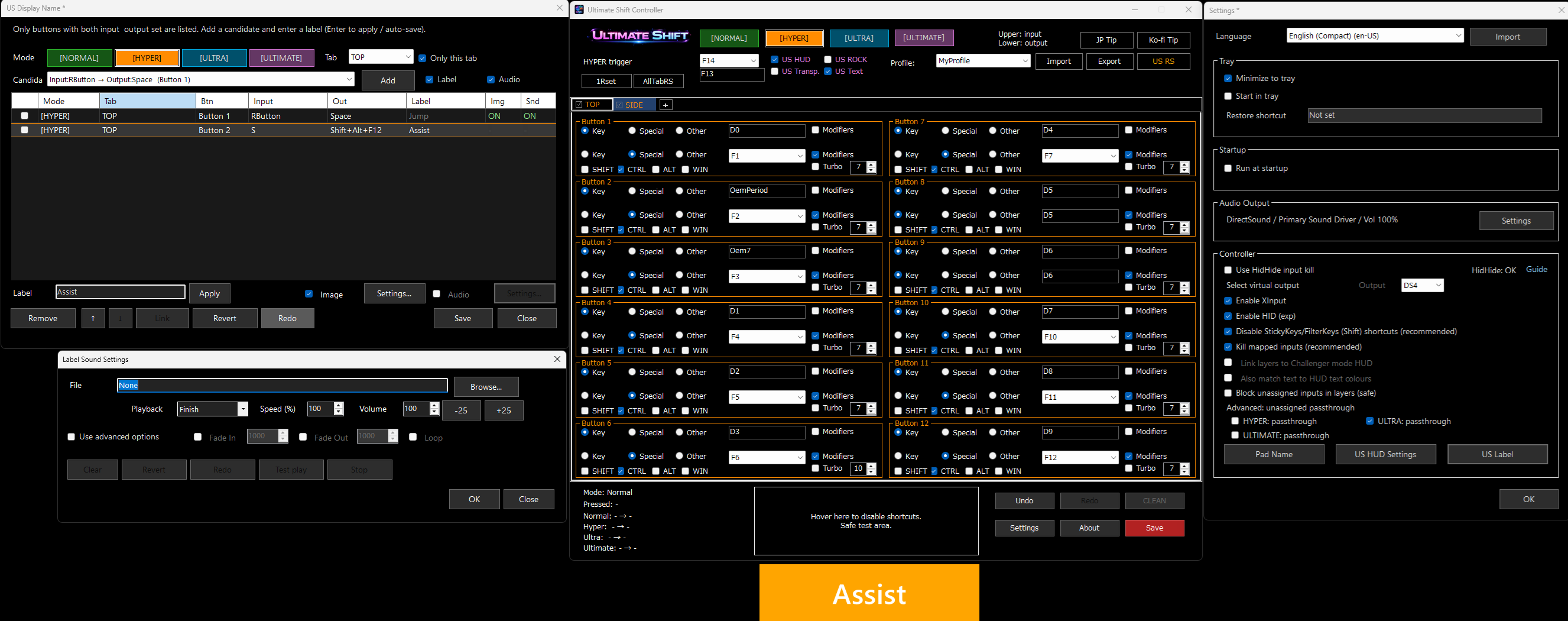
Ultimate Shift Controller is a free layered controller / keyboard / mouse remapper for Windows.
Download:
https://lu-ciel.itch.io/ultimate-shift-controller
A practical alternative for users looking for HyperShift-style layered input, live HUD feedback, virtual controller output, and portable setup.
---
If your controller is not detected, try running Ultimate Shift Controller as Administrator.
Some environments may require elevated permissions, especially when virtual controller drivers, HidHide, or other remapping tools are installed.
コントローラーが認識されない場合は、Ultimate Shift Controller を「管理者として実行」してみてください。
仮想コントローラー、HidHide、他のリマップツールが入っている環境では、管理者権限での実行が必要になる場合があります。
---
# Ultimate Shift Controller
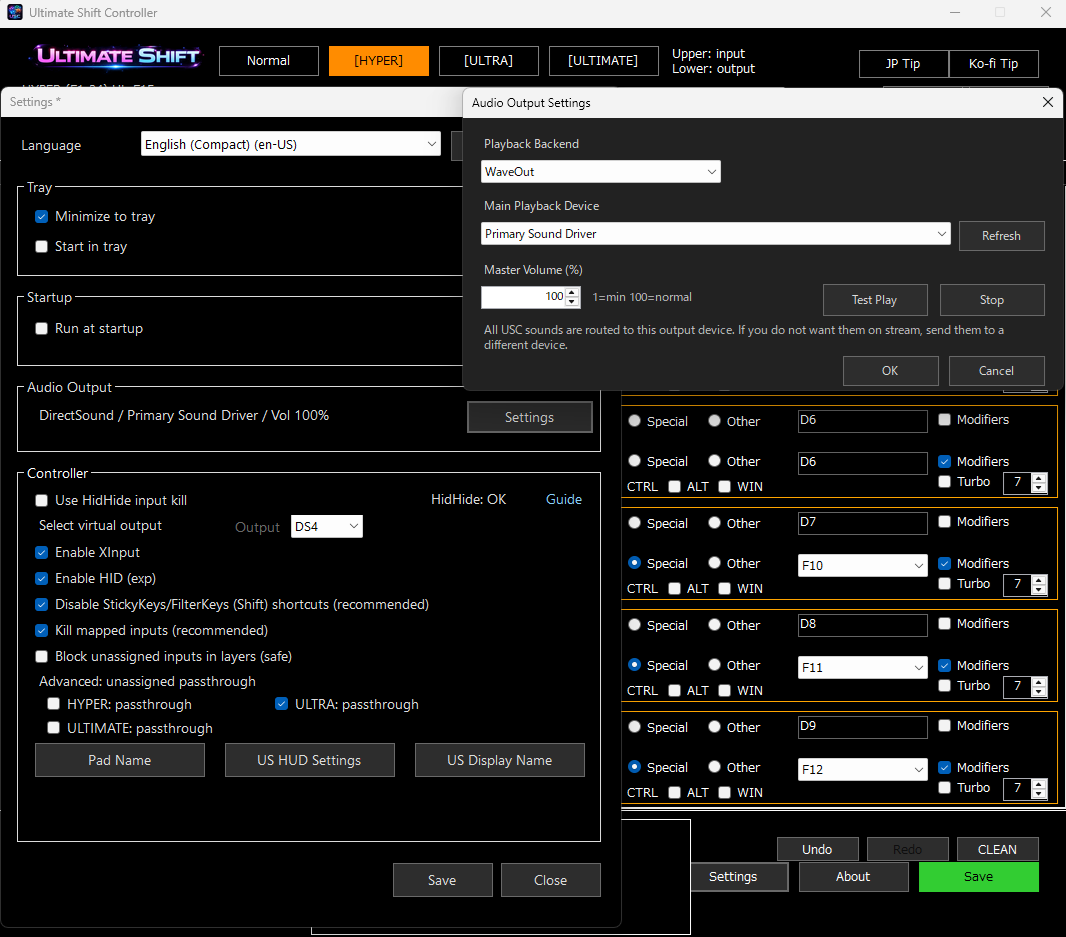
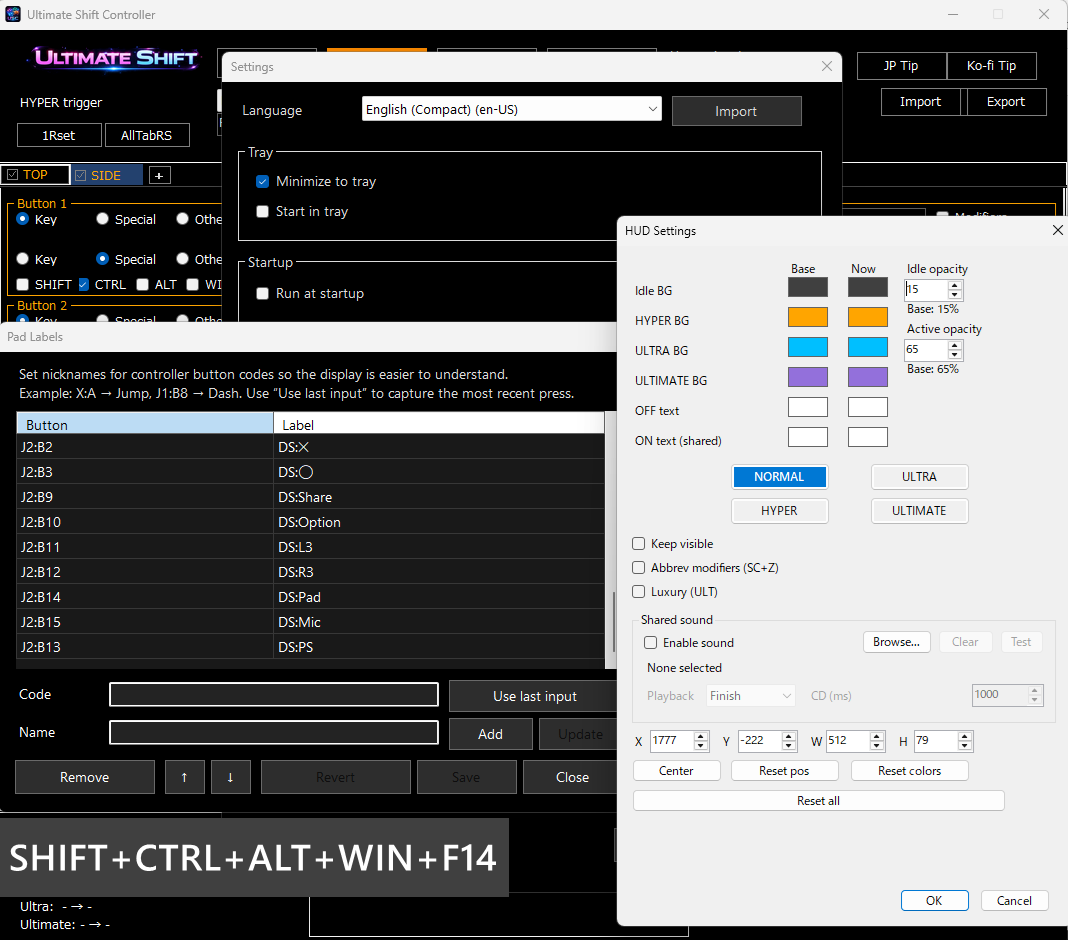
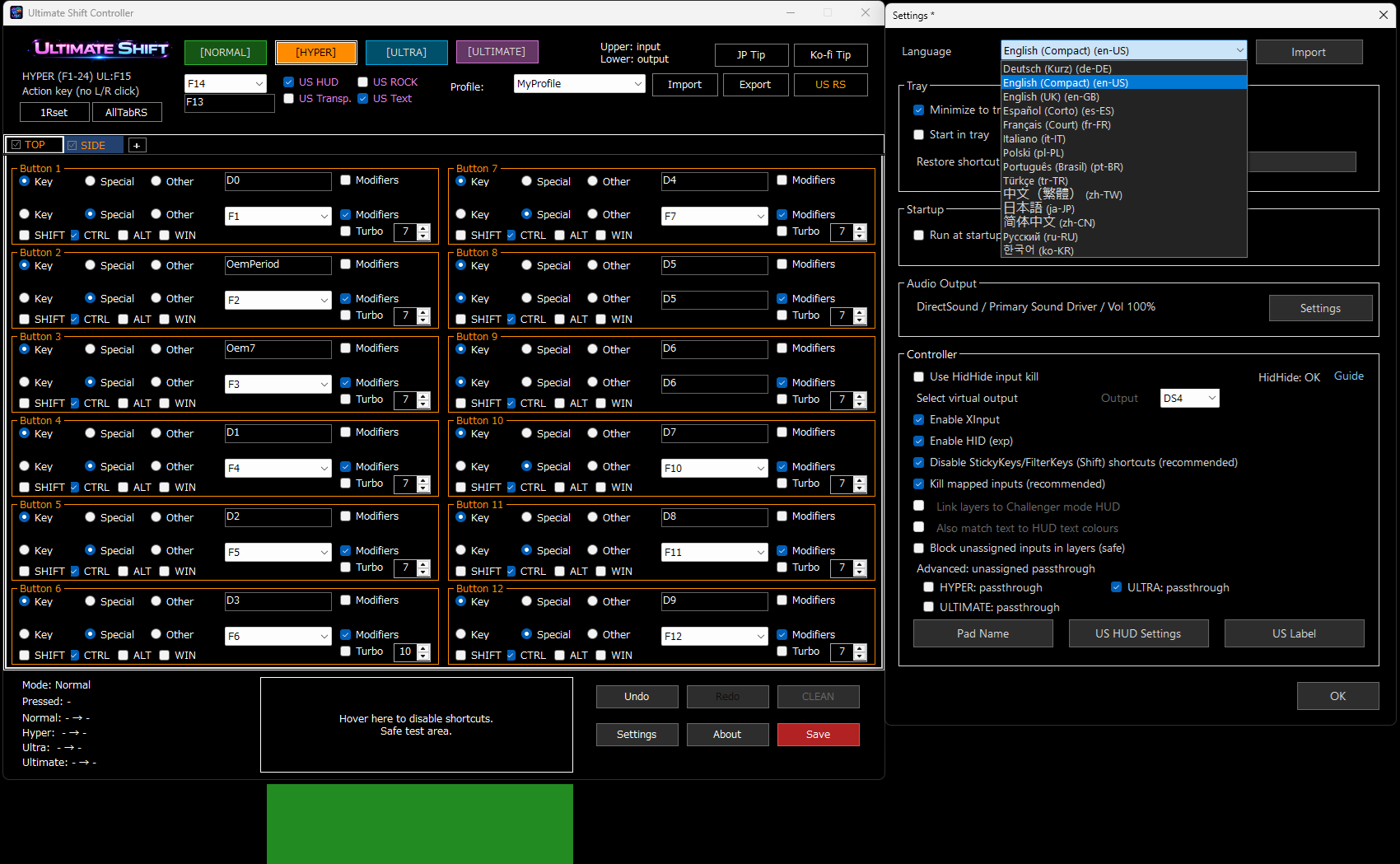
USC currently includes 14 default language presets.
Most UI text inside USC can be customized, so users can create a fully personalized language style for their own use.
Custom language files can also be shared with other users.
---
Ultimate Shift Controller is a free layered controller / keyboard / mouse
remapper for Windows.
A practical alternative for users looking for HyperShift-style layered input, live HUD feedback, and portable setup.
Supports controller-to-keyboard and controller-to-controller workflows.
---
## 日本語版(冒頭注釈用)
※このツールは、各ゲームやサービスの利用規約にできるだけ配慮し、
過度にチート寄りにならないよう設計された入力リマッピングツールです。
一般的なマクロ機能など、規約上グレーになりやすい要素は意図的に絞り込み、
その代わりに、実用性と操作性を高めるためのレイヤーシステムを搭載しています。
規約上の懸念が生じる可能性がある機能としては、
仮想コントローラーを利用した連射機能や、コントローラーのリマッピングが挙げられます。
ただし、これらは格闘ゲームやFPSにおいて、
キーボード・マウス・アーケードコントローラーなどに対して、
通常のゲームパッドでも不利になりすぎないよう補助することを目的として設計されています。
また、このレイヤーシステムや連射機能は、
MMORPGのように操作ボタンが増えやすいゲームでも扱いやすいように作られており、
現在どのボタンを押しているか、どの状態にいるかを
HUDによる視覚表示で確認できるようになっています。
さらに、一部の機能では音による通知にも対応しており、
視覚だけでなく聴覚からも現在の状態や操作の変化を把握しやすくしています。
これにより、コントローラーや多ボタンマウス操作時の誤操作や、
「ボタン操作の迷子」を減らし、
より直感的で安定した操作を支援します。
## English Version (Introductory Note)
*This tool is an input remapping utility designed with the terms of use of games and services in mind,
while avoiding features that lean too heavily toward cheating.*
Functions that are often considered risky or overly aggressive,
such as broad macro-style automation,
have been intentionally limited.
Instead, the tool focuses on improving usability and control
through a layered input system.
Potentially sensitive features may include
turbo functions using virtual controllers
and controller remapping.
However, these features were designed to help standard gamepad users remain competitive
in genres such as fighting games and FPS titles,
where keyboards, mice, or arcade controllers often have an inherent advantage.
In addition, the layered system and turbo-related functions
are also designed to make games with a large number of actions,
such as MMORPGs, easier to manage.
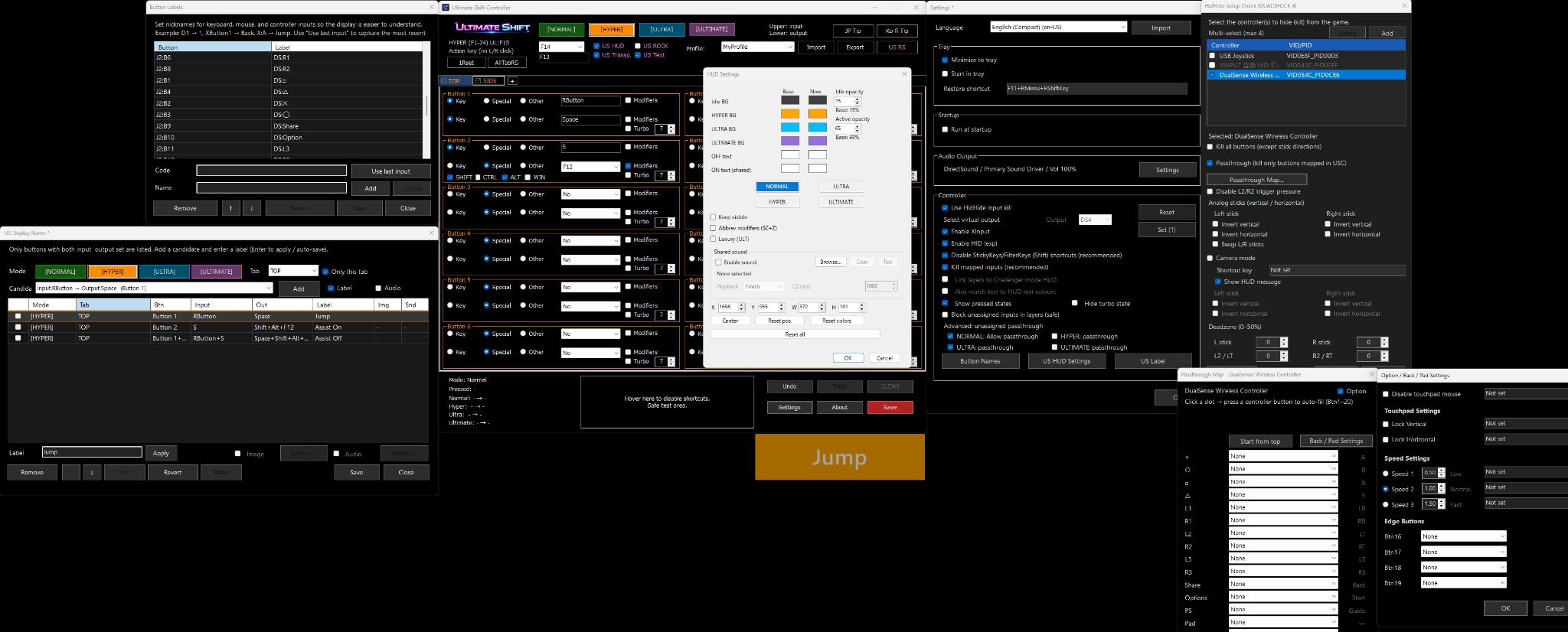
To support this, the tool includes a HUD
that visually shows which buttons are being pressed
and what state or layer is currently active.
Some functions also support audio-based notifications,
making it easier to recognize state changes and input feedback
through both visual and auditory cues.
This helps reduce misinputs and “getting lost” in complex control layouts
when using a controller or multi-button mouse,
making operation more intuitive, stable, and easier to manage.
---
Instructions with images
https://github.com/lost2heaven666/UltimateShiftController/blob/main/Instructions_jp.md
https://github.com/lost2heaven666/UltimateShiftController/blob/main/Instructions_en.md
---
# 日本語
## Ultimate Shift Controller とは
Ultimate Shift Controller は、実際の日常使用を前提に作られた、軽量・ポータブルな Windows 用入力ツールです。
これは、最初から「機能をできるだけ多く並べる製品」を目指して作られたものではありません。
実際に使っていて感じた問題、
たとえば
- ボタン数が足りない
- 連打や多操作で指が疲れる
- 同時押しがやりにくい
- 多ボタン配置で押し間違える
- 久しぶりに使うとレイヤー構成を忘れやすい
- 今どの状態なのか分かりにくい
- 実際に何の入力として処理されているのか見えにくい
といった不満を、一つずつ実用的に解決するために作られました。
USC は、コンセプト段階の試作や単なるデモではありません。
すでに日常利用できる実用品として設計・公開されている、実運用前提のツールです。
---
## USC が目指しているもの
USC が重視しているのは、機能の数そのものではありません。
重視しているのは、
- 実際に使いやすいこと
- 状態が分かりやすいこと
- ミスを減らせること
- 指の負担を減らせること
- 複雑な入力を整理して扱いやすくすること
- 軽く、日常的に運用しやすいこと
です。
つまり USC は、単に入力を変換するだけのツールではなく、
複雑な操作を人間が実際に扱いやすい形へ整理するためのツールです。
---
## 4つの実用レイヤー
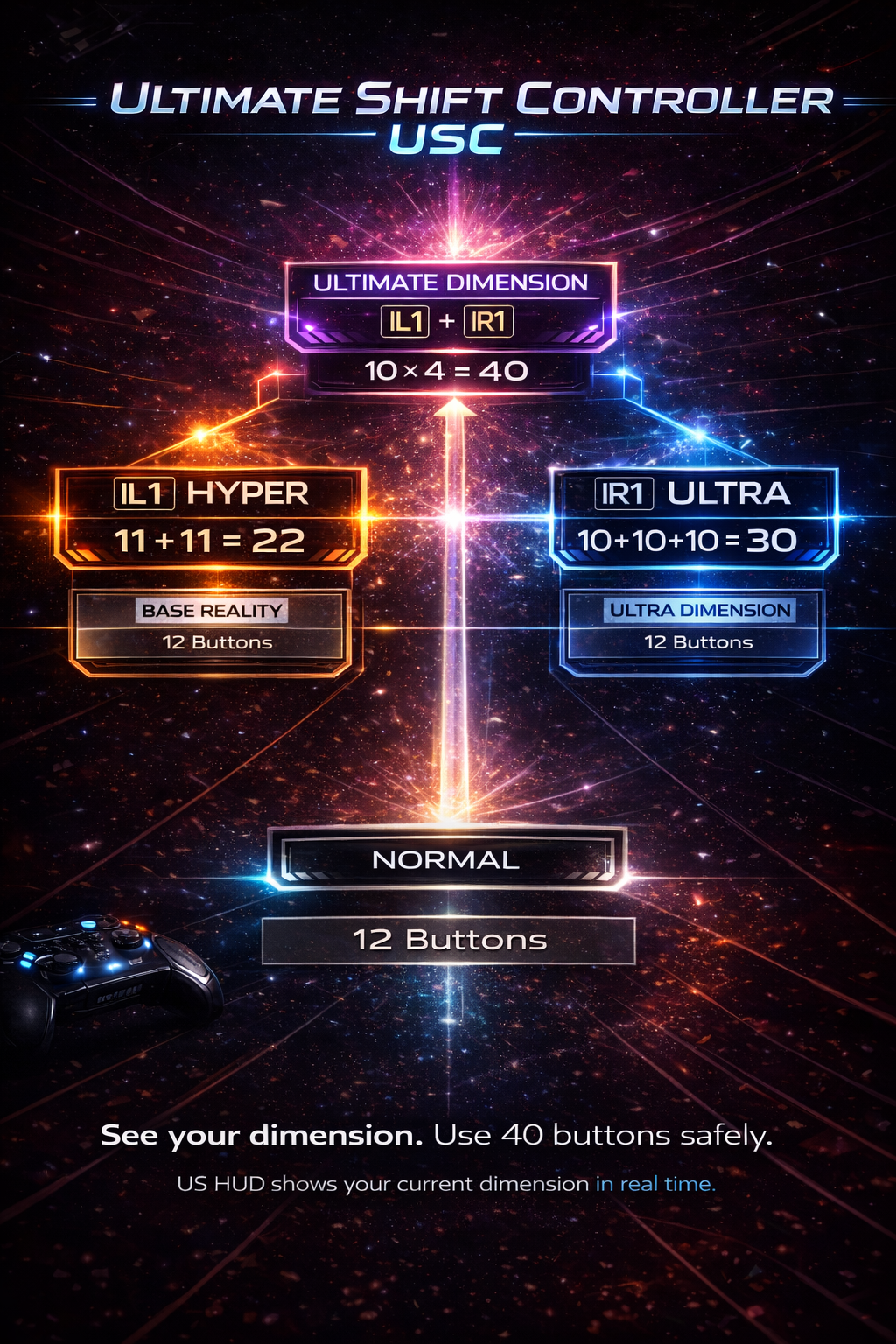
USC は、4つの実用レイヤーを中核にしています。
- Normal
- Hyper
- Ultra
- Ultimate
これらは単なる見た目の切り替えではありません。
入力の意味そのものを切り替えるためのレイヤーです。
重要なのは、技術的に無限に増やせることよりも、
人間が覚えやすく、押しやすく、確認しやすい範囲に整理することを優先している点です。
この4レイヤーによって、1つのコントローラー、マウス、キーボード構成でも、
役割を大きく広げながら、実運用しやすい形を保てます。
---
## ライブHUDが USC の大きな特徴です
USC のHUDは、ただ画面を飾るためのものではありません。
実際の操作を助けるための、実用的なライブHUDです。
たとえば次のような情報を表示できます。
- 現在のレイヤー
- ラベル
- 発火したショートカット
- 現在の入力状態
- 今押しているボタン
- パススルー状態を含めた成立入力
- 実際に出力されている内容
これにより、
- 今どのレイヤーなのか
- 今どのボタンを押しているのか
- 実際に何として解釈されているのか
- 実際に何が出力されているのか
を、その場ですぐ確認できます。
多ボタン構成では特に効果が大きく、
- Alt のつもりが Ctrl だった
- 2 のつもりが 3 を押していた
- 今このレイヤーのつもりだったのに違った
といったズレに気づきやすくなり、ミス軽減にかなり役立ちます。
HUD は確認用であると同時に、視覚ガイドとしても使えます。
物理ボタン側を毎回見なくても、画面上で状態や次の操作位置を確認しながら運用しやすくなります。
---
## 複雑な入力を、分かりやすく扱えるようにする
USC は、複雑な入力を「増やす」ことだけを目的にしたツールではありません。
複雑な入力を、押しやすく、覚えやすく、確認しやすく、ミスしにくい形で扱えるようにすることを重視しています。
対応している実用要素の例:
- レイヤーごとのショートカット
- パススルー制御
- 装飾キーとしてのレイヤー運用
- 条件付き連打
- 同時押しの簡略化
- controller → keyboard
- controller 的な出力リマップ構成
- ボタン名の自由なカスタマイズ
- 状態を見ながらの運用
USC の強みは、単に「割り当てられる数が多い」ことではなく、
複雑な入力環境でも人間側が混乱しにくいことにあります。
---
## よくある入力ツールとの違い
USC は、単なる「ボタンを別のキーへ割り当てるだけのツール」ではありません。
また、単に特定のコントローラーを PC で使うためだけの補助ツールでもありません。
USC は、
- レイヤーによる整理
- ライブHUDでの状態確認
- 今押しているボタンの可視化
- 成立入力 / 出力の確認
- 多ボタン環境での実用運用
- プロファイルを含めたポータブル運用
を一つにまとめています。
そのため USC は、入力を変換するだけでなく、
複雑な実運用を「分かりやすく」「確認しやすく」「ミスしにくく」扱えるようにするためのツールです。
USC は、機能が少ないのではありません。
実用性、軽さ、見やすさ、扱いやすさを優先して、意図的に整理されています。
---
## 仮想コントローラーを使った実用構成にも対応
USC では、仮想コントローラーを使った実用的な構成も組めます。
たとえば、指定した条件の時だけ、指定したボタンだけを連打させるような構成も可能です。
例:
- 入力: R2 + ○
- 出力: ○ターボ
この場合、R2 と ○ を押している時だけ ○ が連打されます。
他の入力では連打されません。
これは単純な常時ターボではなく、
必要な条件の時だけ必要な出力を成立させるための実用的な制御です。
さらに、レイヤー起爆、装飾キー、パススルー、優先ルールなどを組み合わせることで、
複雑な入力でも整理された形で構成できます。
また、物理ボタンのキルを使うことで、
- 左手にコントローラー
- 右手に多ボタンマウス
のような役割分担型の実用構成にも対応できます。
---
## 実用的な調整にも対応
USC は、単純なボタン変換だけでなく、実際の操作感を調整しやすい構成にも対応しています。
実用上の対応例:
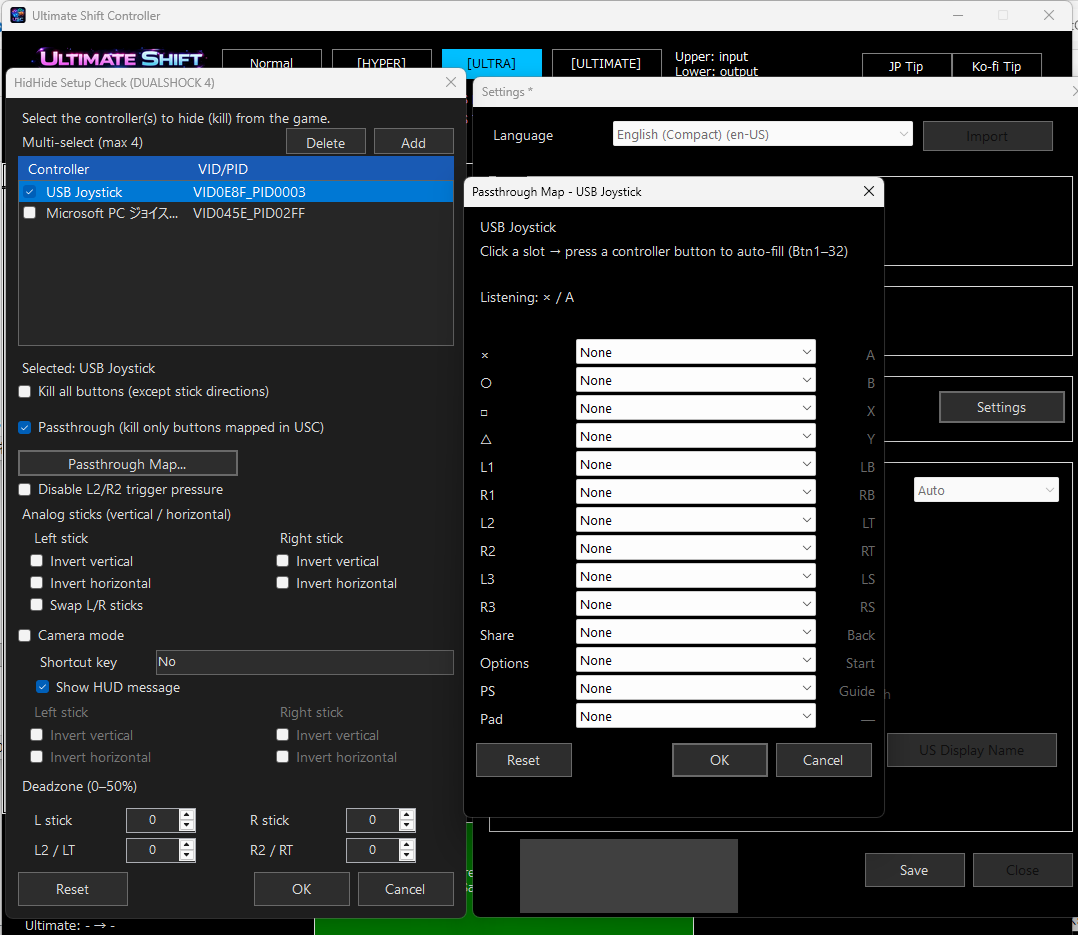
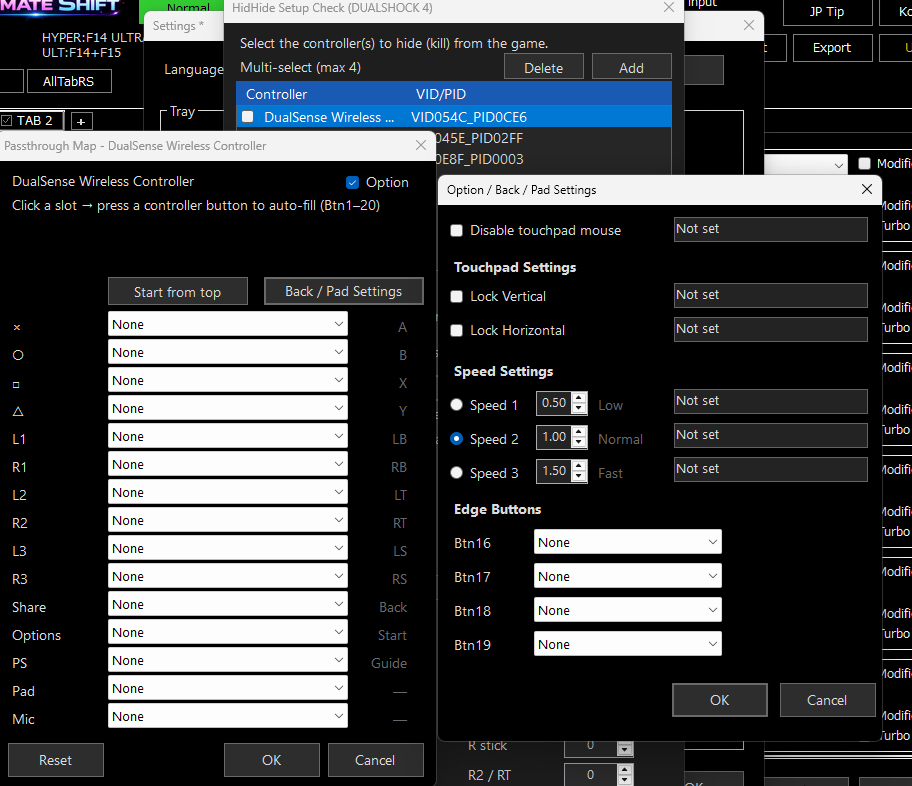
- PlayStation系コントローラー
- DualSense
- Xbox系コントローラー
- Xbox One
- Joystick系デバイス
- コンバーター系構成
- X360 実用運用
また、次のような調整も行えます。
- スティック入れ替え
- 左スティック単体の軸入れ替え
- 垂直 / 水平の入れ替え
- デッドゾーン調整
- コントローラーからマウス的に使う構成
- ショートカットによる操作モード切り替え
- 左利き寄りの実用構成
---
## 軽量・ポータブル・日常向け
USC は、日常的に使い続けやすいことも重視しています。
- インストール不要
- フォルダ完結
- 軽量動作
- プロファイル保存
- タブでの整理
- タブごとの ON / OFF
- オートセーブと本保存を分離
- 未保存状態の警告
- 強制終了後の復元
- 使用中コントローラーの再接続追従
つまり USC は、単に設定できるだけでなく、
安心して継続運用しやすいように作られています。
---
## HUD は実用だけでなく表現にも使えます
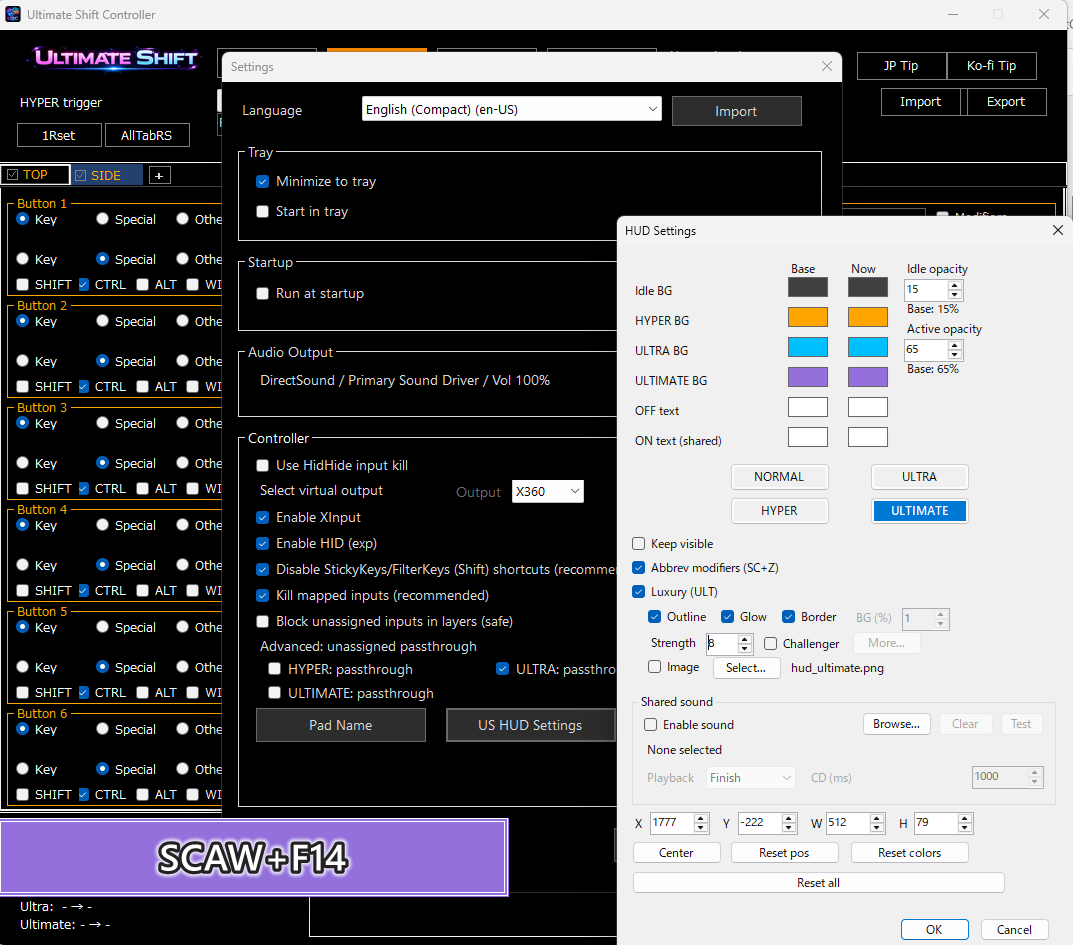
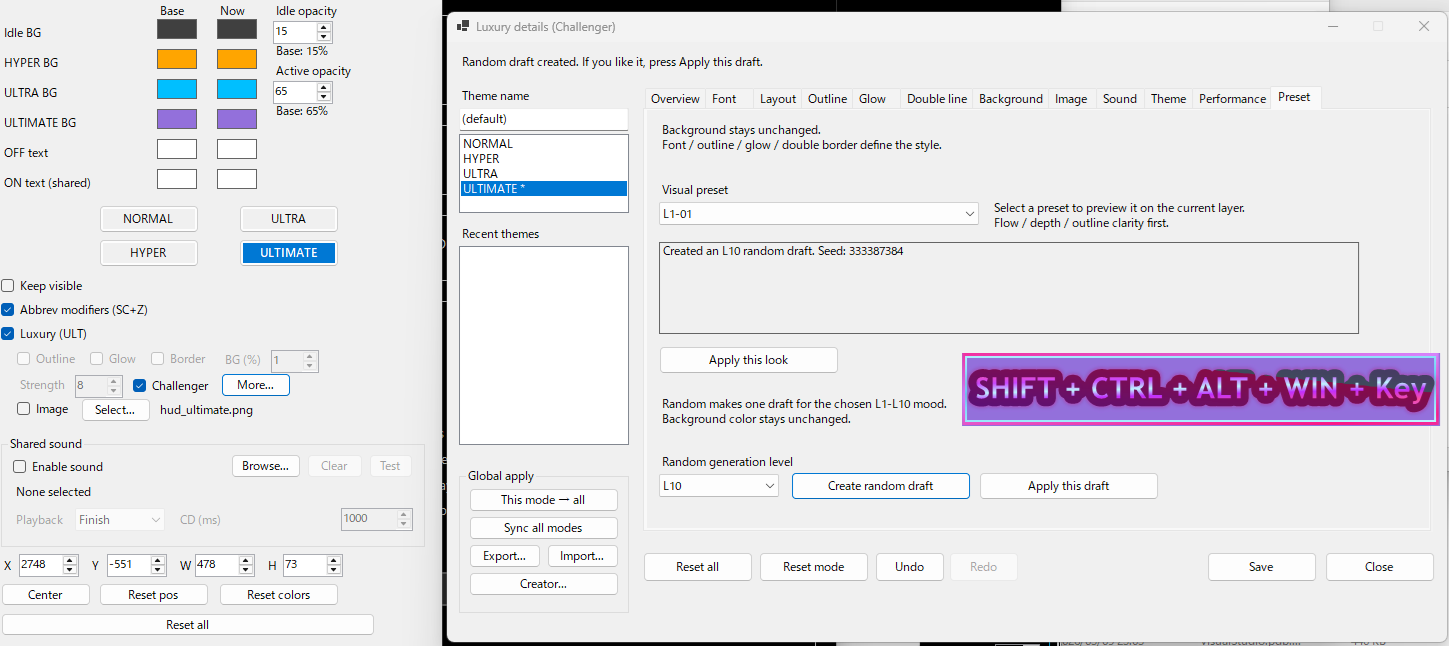
USC のHUDは、入力確認用としてだけでなく、軽量な表現エンジンとしても使えます。
対応している要素の例:
- HUDデザインのカスタマイズ
- ラベル表示
- 画像
- 透過画像
- GIF
- サウンド
- フェード
- サイズ変更
- 透明度調整
- クリック透過
そのため USC は、入力補助だけでなく、
- 状態表示
- 視覚ガイド
- 配信演出
- 表現用オーバーレイ
- ネタ演出や簡易紙芝居的な見せ方
など、実用と表現の両方へ広がる設計になっています。
---
## こんな用途と相性が良いです
USC は、特に次のような用途と相性が良いです。
- コントローラー運用
- 多ボタンマウス運用
- キーマウでのショートカット拡張
- MMO系の多スキル構成
- レイヤーを使った複雑入力
- 画面上で入力確認しながら操作したい用途
- 密度の高いショートカット環境でミスを減らしたい用途
特に、
- 今どこを押しているか
- 次にどこへ指を動かせばいいか
- 今どの装飾状態なのか
- 実際に何が成立しているのか
を視覚的に確認しながら使える点は、多ボタン環境で大きな強みになります。
---
## 多言語・共有・カスタマイズ
USC は、使う人ごとの環境に合わせやすいように設計されています。
- 14種類の標準言語プリセット
- 言語ファイルの自作
- 言語ファイルの共有
- プロファイル共有
- 多くのUI文面のカスタマイズ
- クリエイター向けの拡張設計
固定された使い方を押し付けるのではなく、
それぞれの用途や好みに合わせて、自分用の運用へ広げられる柔軟さがあります。
---
## USC の価値
USC は、
- 入力数を整理して増やすためのツール
- 今の入力状態を見えるようにするツール
- HUDを使って表現まで広げられるツール
です。
そしてそのすべてが、
- 軽量
- ポータブル
- 実用品寄り
- 日常運用しやすい設計
でまとまっています。
USC の価値は、派手な機能一覧だけではありません。
- 疲れにくくなる
- 押し間違いを減らせる
- 複雑な入力を扱いやすくなる
- 今の状態を画面で確認できる
- 自分に合った形へ広げられる
- 実用にも表現にも使える
そういう、実際に使う時に効く強さが USC の一番の価値です。
---
## 起動方法
USC は軽量な Windows 用ポータブルツールです。
インストールは不要です。
### Quick Start
1. ZIPファイルをダウンロード
2. 任意の場所に展開
3. 展開したフォルダを開く
4. `UltimateShiftController.exe` を起動
### 推奨モード
- 最も安定しやすいのは DS4 mode
- X360 mode も利用可能
### うまく動かない場合
- コントローラー検出が不安定な場合は、USC の再起動で改善することがあります
- 必要に応じて、コントローラーを再接続してから USC を起動し直してください
### ポータブル運用
- USC はフォルダ完結型のポータブルツールです
- 好きな場所に置いて使用できます
- 設定やプロファイルは USC フォルダ内で管理されます
---
# English
## What Ultimate Shift Controller is
Ultimate Shift Controller is a lightweight, portable Windows input tool built for real everyday use.
It was not designed as a feature-checklist app.
It was built to solve real problems that happen during actual play and actual daily use.
For example:
- not enough buttons
- finger strain from repeated inputs
- awkward simultaneous inputs
- mistakes caused by dense multi-button layouts
- difficulty remembering layered layouts after time away
- difficulty understanding what is active
- difficulty seeing what input is actually being interpreted or triggered
USC is not a concept build, not a prototype, and not a beta-style demo.
It is a public practical release designed for real daily use.
---
## What USC focuses on
USC does not try to win by listing the most features.
Its priorities are:
- practical usability
- clear state visibility
- fewer mistakes
- lower finger strain
- better organization of complex inputs
- low overhead
- comfortable everyday operation
In other words, USC is not just an input conversion tool.
It is a tool for making complex control setups easier for actual humans to use.
---
## Four practical layers
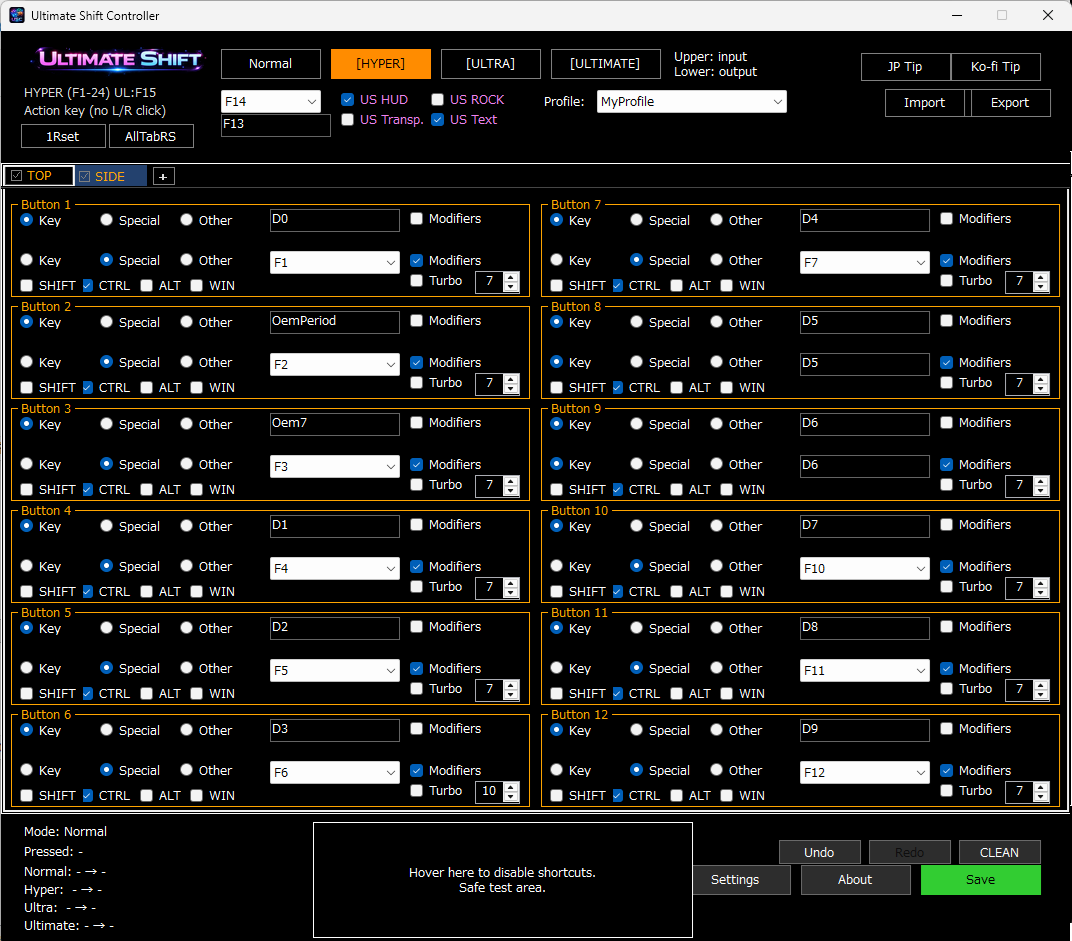
USC is built around four practical layers:
- Normal
- Hyper
- Ultra
- Ultimate
These are not just visual modes.
They change how inputs are interpreted and controlled.
The goal is not to add endless layers just because it is technically possible.
The goal is to keep the system readable, usable, and practical for real hands in real-time use.
With these four layers, one controller, mouse, or keyboard setup can do much more without becoming confusing.
---
## A live HUD that is actually useful
One of USC's biggest strengths is its live HUD.
This HUD is not just for decoration.
It is designed to support actual real-time use.
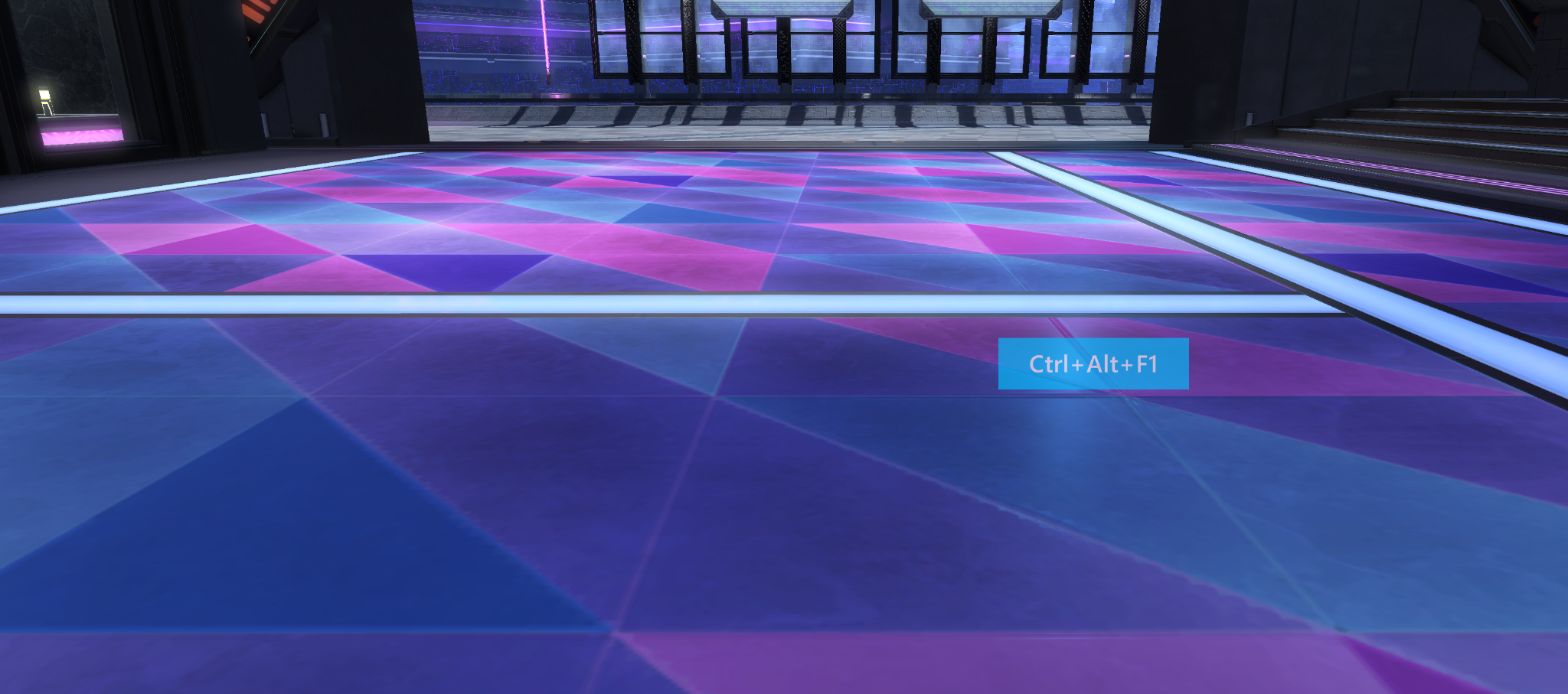
It can show things such as:
- current layer
- labels
- triggered shortcuts
- current input state
- currently pressed buttons
- effective input state including passthrough behavior
- actual output being triggered
This makes it much easier to understand:
- what layer is active
- what button you are pressing
- what input is actually being interpreted
- what output is actually being sent
This is especially useful in dense multi-button layouts.
It helps users quickly notice mistakes such as:
- pressing Ctrl when they meant Alt
- pressing 3 when they meant 2
- thinking they are on one layer when they are actually on another
The HUD also works as a visual guide.
Instead of constantly looking down at physical buttons, users can confirm state and next actions directly on screen.
---
## Built to make complex input easier to handle
USC is not just about increasing the number of possible inputs.
It is about making complex inputs easier to press, easier to remember, easier to confirm, and harder to misuse.
Examples of practical systems supported by USC:
- layer-based shortcuts
- passthrough control
- modifier-style layer operation
- conditional turbo
- simultaneous-input simplification
- controller to keyboard mapping
- controller-style output remap workflows
- custom button naming
- state-aware operation with live feedback
Its strength is not just "more mappings."
Its strength is making complex layouts easier to manage in real use.
---
## How USC differs from common remapping tools
USC is not just a simple button-to-key mapper.
It is also not only a controller support utility.
It combines:
- layered control
- live HUD confirmation
- pressed-button visibility
- effective input and output visibility
- practical support for dense multi-button workflows
- portable profile-based operation
Because of that, USC is designed not only to remap input, but to make complex control setups easier to understand, easier to confirm, and easier to use consistently.
USC is not "limited."
It is intentionally focused on practical control, clarity, readability, low overhead, and everyday usability.
---
## Practical virtual controller workflows
USC can also support practical virtual controller workflows.
For example, it can create conditional turbo behavior such as:
- input: R2 + Circle
- output: Circle turbo
In that case, Circle repeats only while R2 + Circle is being pressed.
Other inputs do not accidentally trigger turbo.
This allows targeted repeat behavior instead of simple always-on turbo.
By combining layer triggers, modifier-style control, passthrough behavior, and shortcut priority rules, USC can build complex but organized real-use setups.
It can also support role-separated hybrid setups such as:
- left hand on a controller
- right hand on a multi-button mouse
---
## Device support and practical adjustment
USC is not limited to simple post-recognition remapping.
It already supports practical use with:
- PlayStation controllers
- DualSense
- Xbox controllers
- Xbox One
- joystick-style devices
- converter-based setups
- practical X360 workflows
It also supports practical adjustments such as:
- stick swap
- left-stick-specific axis remap
- vertical / horizontal axis remap
- deadzone tuning
- controller-to-mouse style workflows
- shortcut-based mode switching
- left-handed-oriented operation
---
## Lightweight, portable, and built for everyday use
USC is designed to be easy to keep using.
It includes:
- no installer required
- folder-based portable setup
- lightweight operation
- profile saving
- tab-based organization
- per-tab on / off control
- autosave separated from real save
- unsaved change warnings
- restore after unexpected close
- reconnect-aware behavior for previously used controllers
This means USC is not only configurable.
It is built to stay comfortable in long-term everyday use.
---
## Useful for both utility and expression
USC is not only about input control.
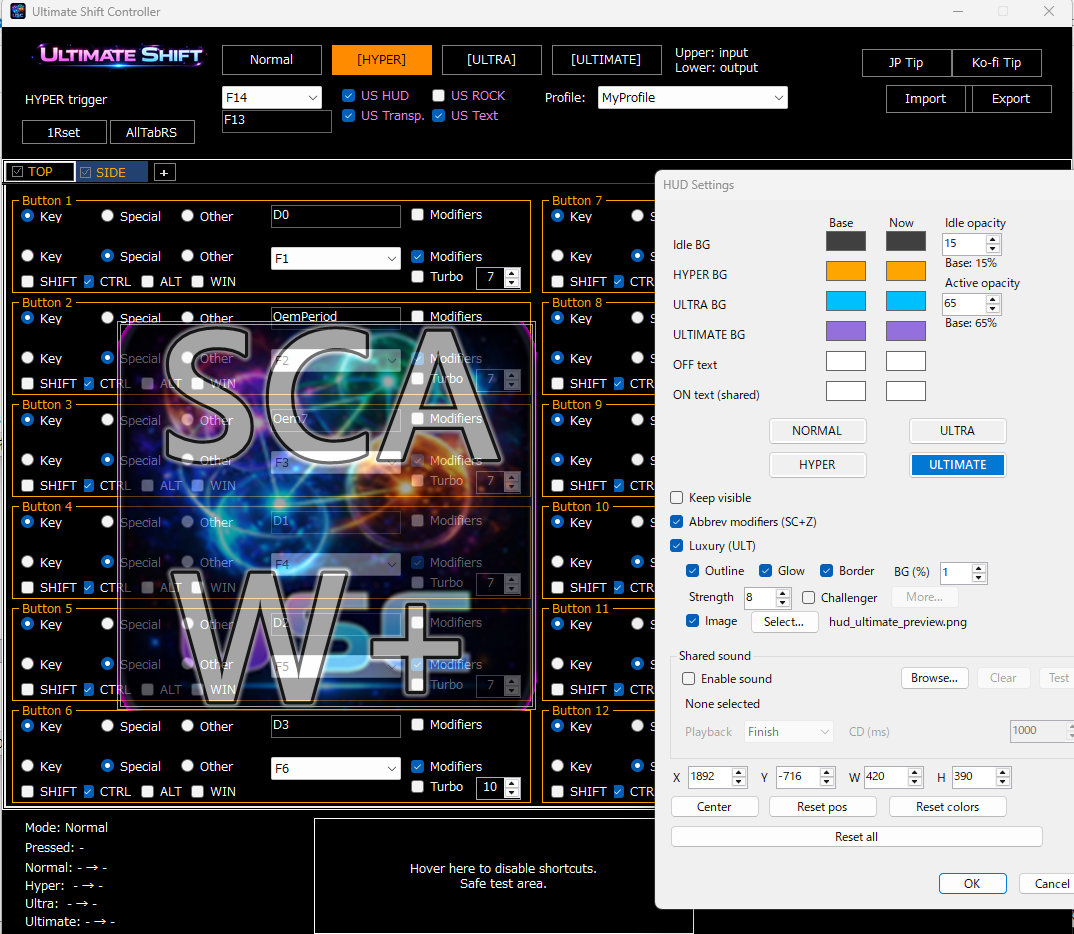
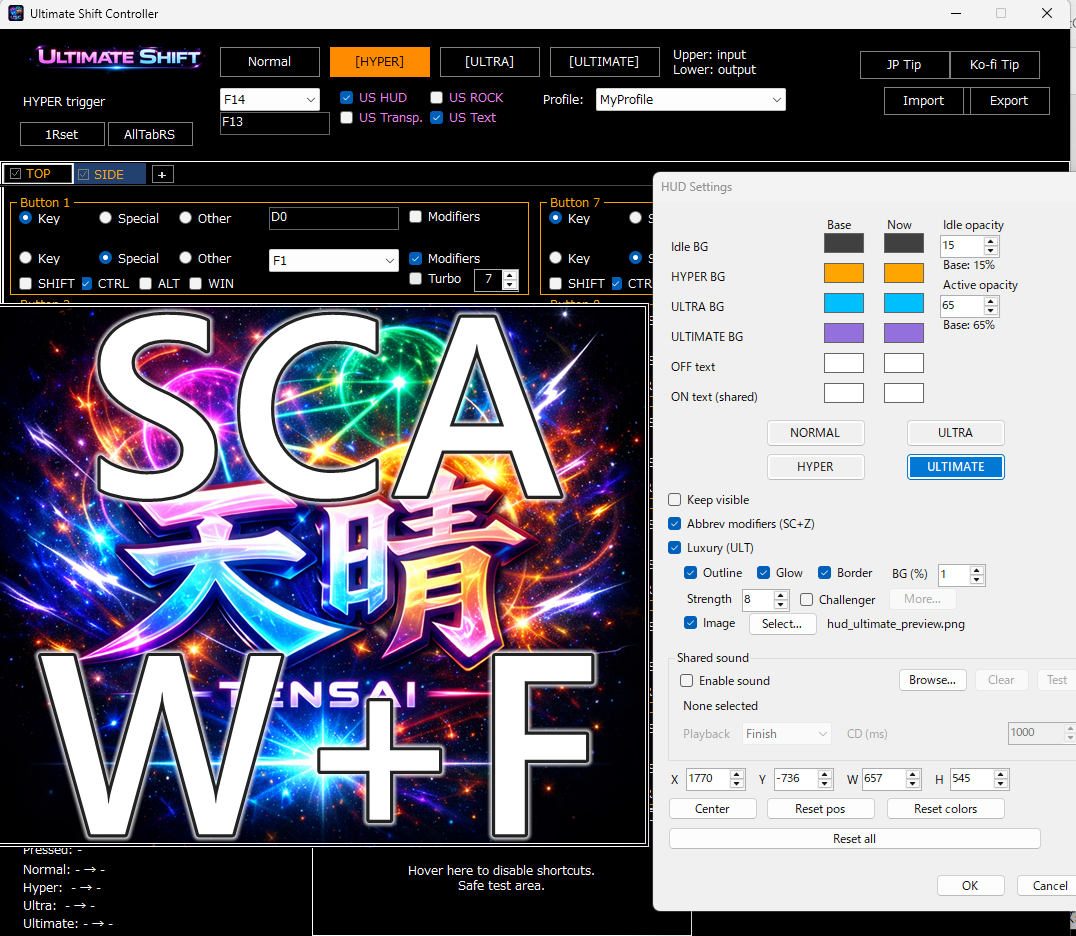
Its HUD can also work as a lightweight visual expression engine.
It supports things such as:
- HUD design customization
- labels
- images
- transparent images
- GIFs
- sound
- fade behavior
- resizing
- opacity control
- click-through HUD locking
That means USC can be used not only for utility, but also for:
- visual feedback
- live guidance
- streaming ideas
- presentation overlays
- playful or creative on-screen effects
---
## Good fit for complex input environments
USC works especially well for:
- controller users
- multi-button mouse users
- keyboard and mouse users with layered shortcuts
- MMO-style layouts
- users who want on-screen confirmation while playing
- users who want fewer mistakes in dense shortcut environments
It is especially useful when physical position, modifier state, and shortcut result would otherwise be difficult to track at the same time.
---
## Multilingual, shareable, customizable
USC is designed to adapt to different users and different workflows.
It includes:
- 14 default language presets
- custom language creation
- language file sharing
- profile sharing
- customizable UI text in many parts of the app
- creator-oriented expansion design
Instead of forcing one fixed style, USC gives users room to shape the tool around their own workflow and language style.
---
## What USC is really for
USC is:
- a tool for organizing and expanding available inputs
- a tool for making current input state visible
- a tool that can extend from utility into visual expression through its HUD
And it does all of that while staying:
- lightweight
- portable
- practical
- suitable for everyday use
Its value is not just in a feature list.
Its real value is in what it improves during actual use:
- less finger strain
- fewer input mistakes
- easier handling of complex layouts
- better visibility of current state
- more room for personalized workflows
- support for both practical use and creative expression
That practical strength is what USC is really built around.
---
## Quick Start
USC is a lightweight portable Windows tool.
No installer is required.
### Start
1. Download the ZIP file
2. Extract it anywhere
3. Open the extracted folder
4. Run `UltimateShiftController.exe`
### Recommended modes
- DS4 mode is recommended for the most stable experience
- X360 mode is also available
### If something looks wrong
- If controller detection behaves unexpectedly, restarting USC may help
- If needed, reconnect the controller and launch USC again
### Portable setup
- USC is designed as a folder-based portable application
- You can move the folder if needed
- Profiles and related settings are managed inside the USC folder structure
https://github.com/Lu-ci-el
https://github.com/Lu-ci-el/UltimateShiftController
Download
Click download now to get access to the following files:
Development log
- Ultimate Shift Controller v2.9.46 days ago
- Ultimate Shift Controller v2.9.340 days ago
- Ultimate Shift Controller v2.8.348 days ago
- Ultimate Shift Controller v2.6.156 days ago
- Ultimate Shift Controller v2.4.876 days ago
- Ultimate Shift Controller v2.4.792 days ago
- Ultimate Shift Controller v2.4.6Mar 28, 2026
- Ultimate Shift Controller v2.4.5Mar 28, 2026

Comments
Log in with itch.io to leave a comment.